
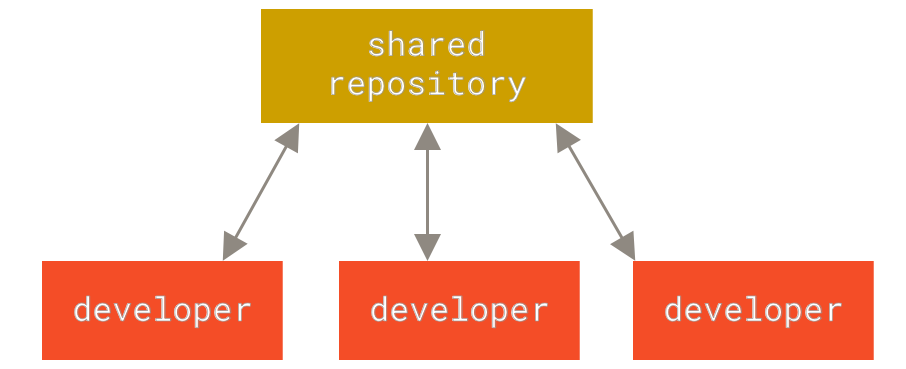
“Version control is a system that records changes to a file or set of files over time so that you can recall specific versions later.” This system is especially important to use if you work with computers often. The system gives you the opportunity to resort back to an image or page’s original state or any previous state for that matter. Recovery is a word that most software and web developers like to hear. It is very easy to make a mistake when coding and being able to quickly restore what was mistakenly added or deleted makes things easier and a lot less stressful. Past problems that were bound to occur were the possibility of mistaking the back-up file with the actual file and overriding or copying it over the wrong file. Centralized Version Control Systems (CVCSs) were developed in order to prevent another problem from arising and that is the issue of the system not being able to collaborate with developers on other systems. Another backup is the Distributed Version Control Systems (DVCSs) that fully restores a file that gets completely deleted for whatever reason. All of these potential systems allows you the opportunity to never live in fear of losing your work files.
To start off, Git is important to us because in this particular assignment and probably most others we begin using it and it becomes helpful to have a better understanding of what programs we are using. Git makes saving files to the program less complex. When one file accidently gets deleted for whatever reason, Git has already automatically saved a copy of the file that was being worked on before. According to Git—fast-version-control, “some of the goals of the new system were as follows: speed, simple design, strong support for non-linear development, fully distributed, (and) able to handle large projects like the Linux kernel efficiently” (https://git-scm.com/book/en/v2/Getting-Started-A-Short-History-of-Git).
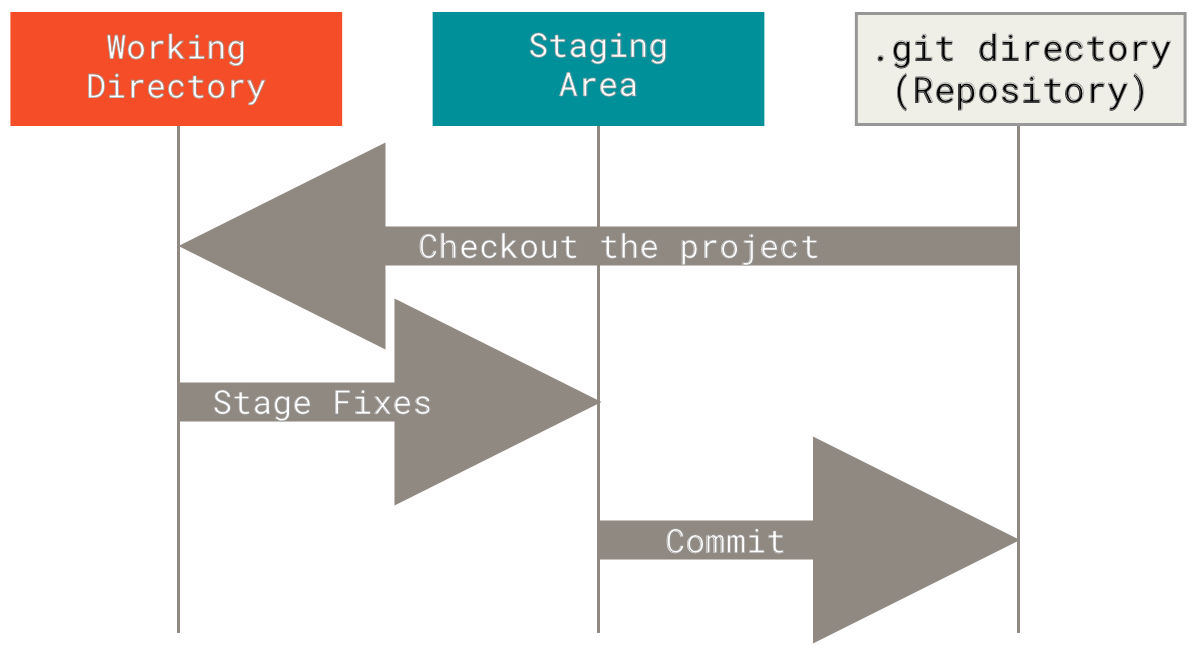
The Git directory, the working tree, and the staging area are the three main sections of any Git project. The three main states for a Git project themselves can be in: committed, modified, and staged. These all hold a different importance that needs to be remembered to help the rest of the learning process to occur smoothly. The committed state is when the data is safely stored. The modified state means the file has been changed but is not committed to the database yet. And staged means a modified file has been marked to be put into the next commit snapshot.
There are two main approaches to getting a Git project: importing an existing project into Git, or cloning an existing Git repository from another server. In order to start version-controlling an existing Git file you need to begin tracking the files and do an initial commit. Opposed to other VCS systems like Subversion, when cloning Git doesn’t just take a working copy, but a copy of nearly all the data the server has. This comes in handy for the off chance that the server disk becomes corrupted so there are clones that can be used to back up the lost files within the system.
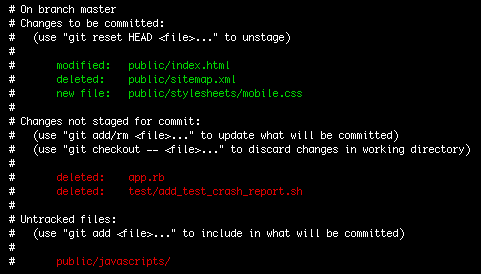
The “git status” command is a very effective tool when it comes to modifying a file. When the command is used, the response will tell you whether the file has been changed or not which will give you an immediate idea on what the original file looks like during its current state. The “git status” also shows new files added to a project that hasn’t been added to the tracked files yet. In order to add a new file to be tracked opposed to untracked the command will be “git add” with the name of the file placed after it.